Create child and sibling nodes
2 min readUpdated By NodeBook Team
💡 Pro Tip:
Press N to open the Create window without reaching for the mouse.
Child or sibling?
- A child node goes one level down: it's added to the ring around the central node.
- A sibling node sits next to the central node, under the same parent. It's only offered when the central node isn't the top of your NodeBook.
Create a node from the New button
- Click New in the top bar, or press N. The Create window opens and shows which node it Adds to.
- Choose Child node or Sibling node.
- Type a title in Node title.
- Click Create node.
On a phone, New is the round button at the bottom of the screen.
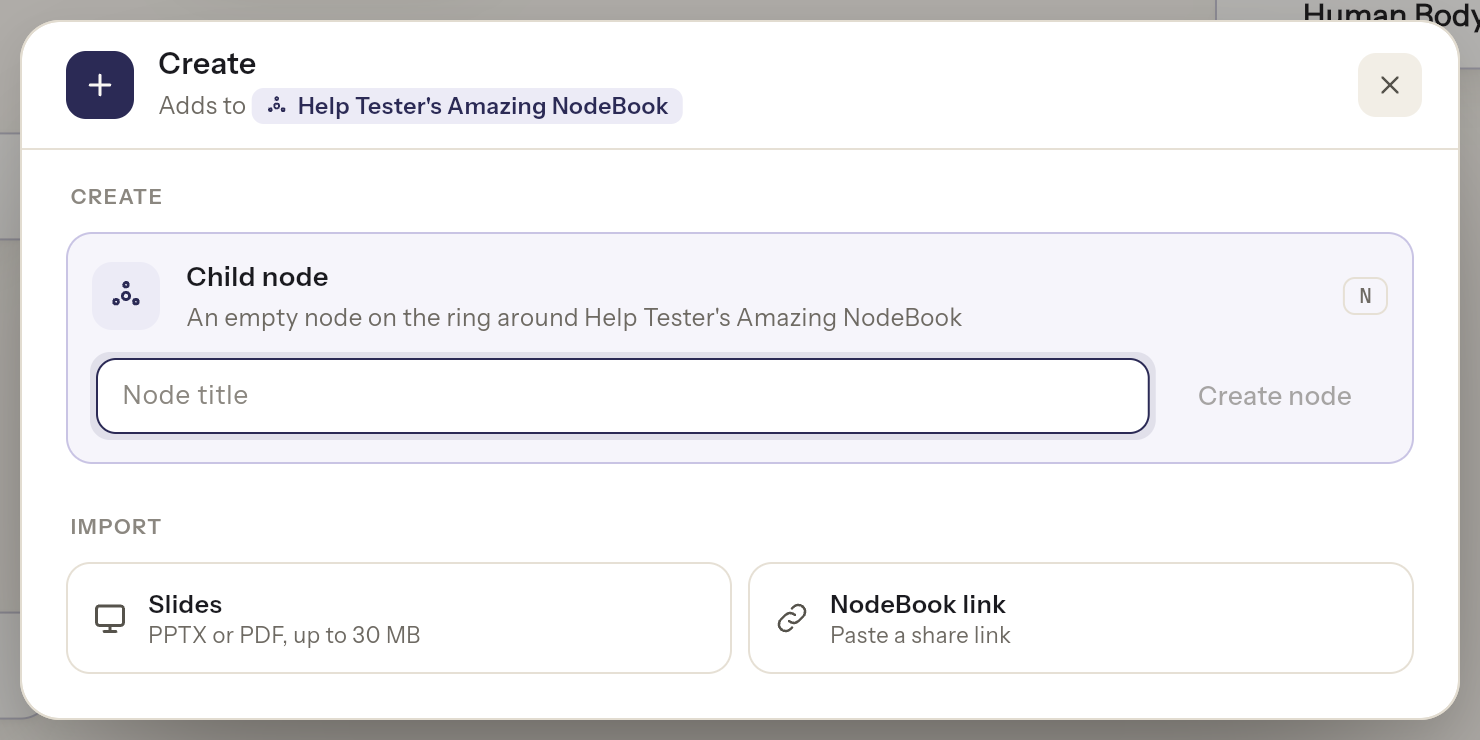
Create a child from the node itself
In Edit mode, point at any node and click + (Add child node). You can also open the node menu and choose New child node.
When a node is full
A node can have up to 31 child nodes. Once it has 31, the Create window shows This node is full: the canvas fits no more children around it. Add the new node inside one of its children instead.
Other things the Create window can do
- Tab in this node: when a node's content is open, adds a blank tab to it. See Work with tabs.
- Slides: turns a PowerPoint or PDF file into nodes. See Turn slides into a NodeBook with Nodi.
- NodeBook link: copies a node in from a link. See Import a node from a NodeBook link.
Essential Canvas Controls:
Was this article helpful?