What is NodeBook?
💡 Pro Tip:
Not sure where something lives? The node path in the top bar always shows where you are, and the ⌂ at its start takes you back to the top.
A subject as a tree, not a stack of pages
Long notes and slide decks are read from top to bottom. NodeBook lays a subject out the way it actually fits together: one main topic in the middle, its subtopics around it, and their subtopics one level further in.
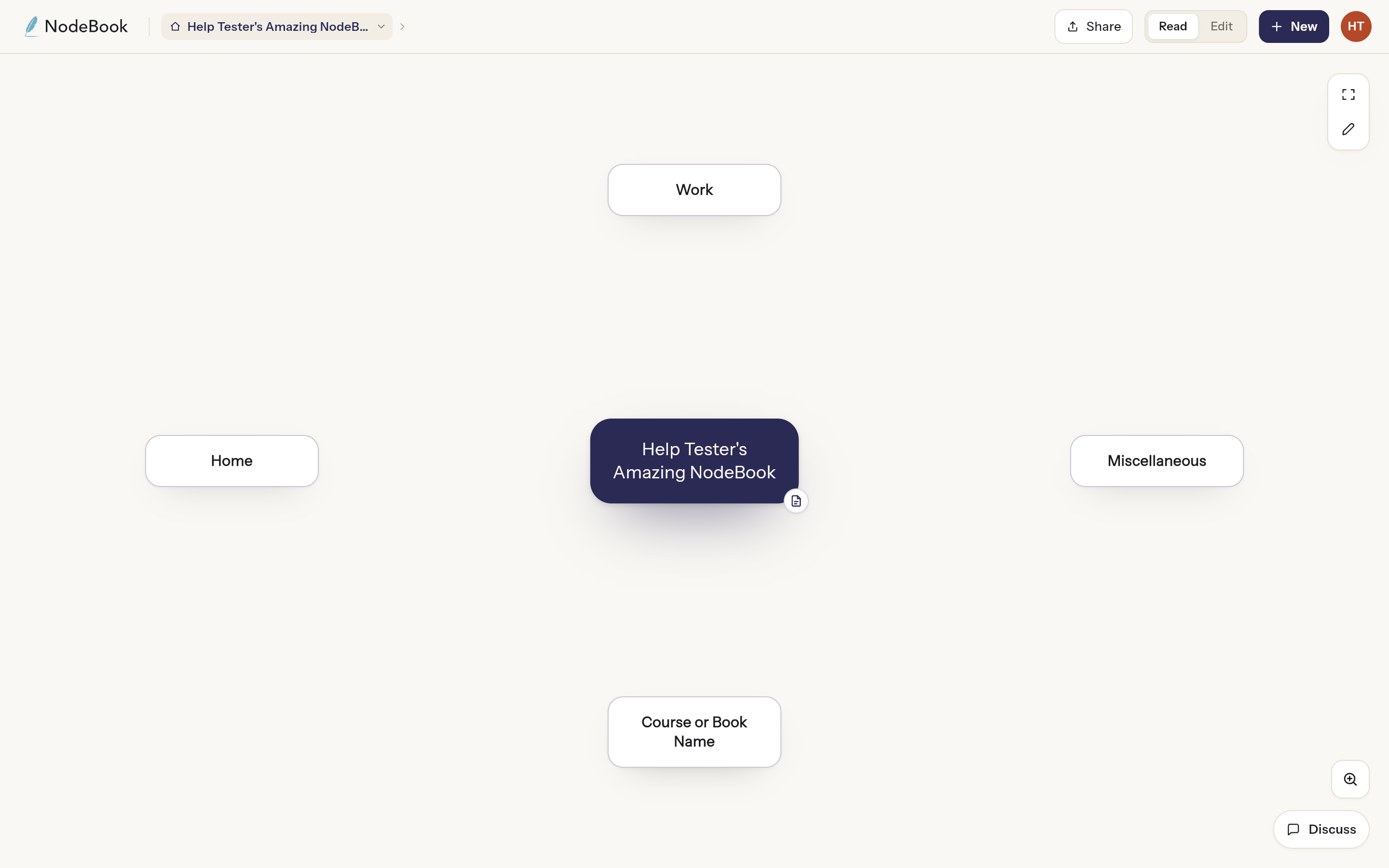
Each topic is a node. You can see at a glance how the parts of a subject relate, and jump straight to the one you need.
Nodes
- The node in the middle of the canvas is the central node. It's the topic you're looking at right now.
- Its child nodes sit on a ring around it. A node can have up to 31 children.
- Click a child node and it moves to the centre, with its own children around it. That's how you go one level deeper.
- The node path in the top bar shows every level between the top of your NodeBook and where you are. Click any level to go back to it.
Tabs: the content inside a node
Every node can hold content, organised in tabs. A tab is a page inside the node: it can hold formatted text, images, video, audio, handwriting and files.
A node can have several tabs, for example Summary, Worked example and Practice questions. A small badge on a node shows that it has content.
Read and Edit
When you open your own NodeBook you can switch between Read and Edit in the top bar. Read is for studying: clicking moves you through the tree and opens content. Edit brings out the tools for changing it, such as the + on each node and the formatting toolbar in tabs.
Sharing
You can share any node with a link. People with the link can read that node and everything under it, without signing up. You choose what stays hidden or behind a password.
What it costs
NodeBook is free, with no credit card needed. It runs in your web browser, so there's nothing to install.
Was this article helpful?