Export to PDF
2 min readUpdated By NodeBook Team
💡 Pro Tip:
Exporting a chapter for printing? Keep Start each node on a new page on, so each topic can be handed out on its own.
Open Export
Use any of these:
- Open the account menu and click Export this NodeBook. It exports the node you're on.
- Open a node's menu and choose Export….
- Press Ctrl+Shift+E (Mac: ⌘⇧E).
You can export your own nodes and nodes that were shared with you.
Choose what to export
Under What to export:
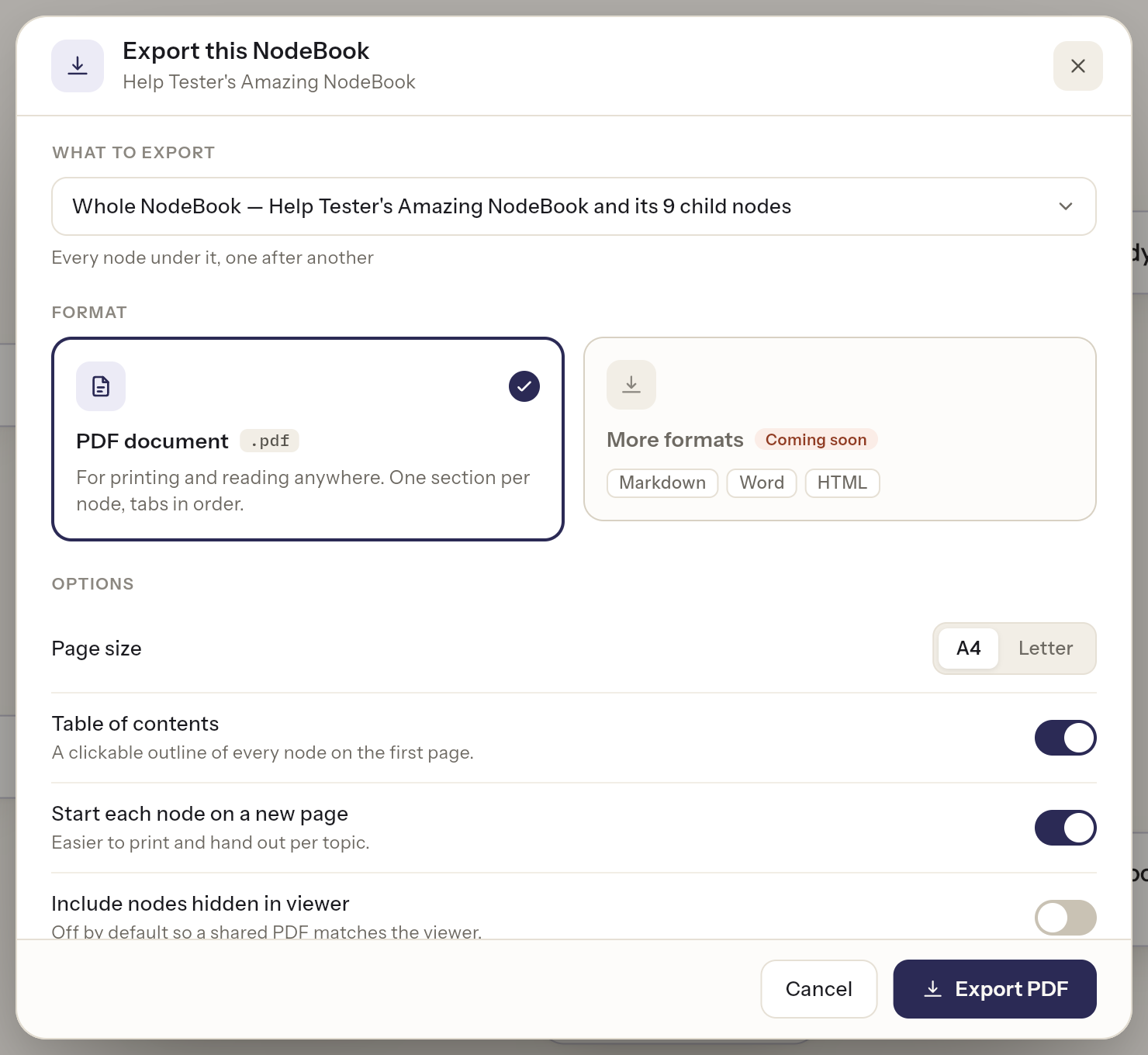
- This node and its children: Every node under it, one after another. This is the default when the node has children.
- Only this node: Just this node's own tabs.
From the top of your NodeBook, the choices read Whole NodeBook and Only the root node and its tabs.
Format and options
Format is PDF document: For printing and reading anywhere. One section per node, tabs in order. Other formats are marked Coming soon.
Under Options:
- Page size: A4 or Letter.
- Table of contents: A clickable outline of every node on the first page. On by default.
- Start each node on a new page: Easier to print and hand out per topic. On by default.
- Language: for a bilingual node, choose English or العربية.
- Include nodes hidden in viewer and Include locked nodes: see Hidden and locked nodes in a PDF.
Nodes appear in the PDF in the same order as on the canvas.
Create the PDF
- Click Export PDF. You see Generating PDF. Please wait...
- When it's done, you see Your export is ready and the download starts. If it doesn't, click Download.
- Click Done.
If you see Failed to generate PDF, click Retry. Very large branches take longer; try exporting a smaller part.
Essential Canvas Controls:
Was this article helpful?